

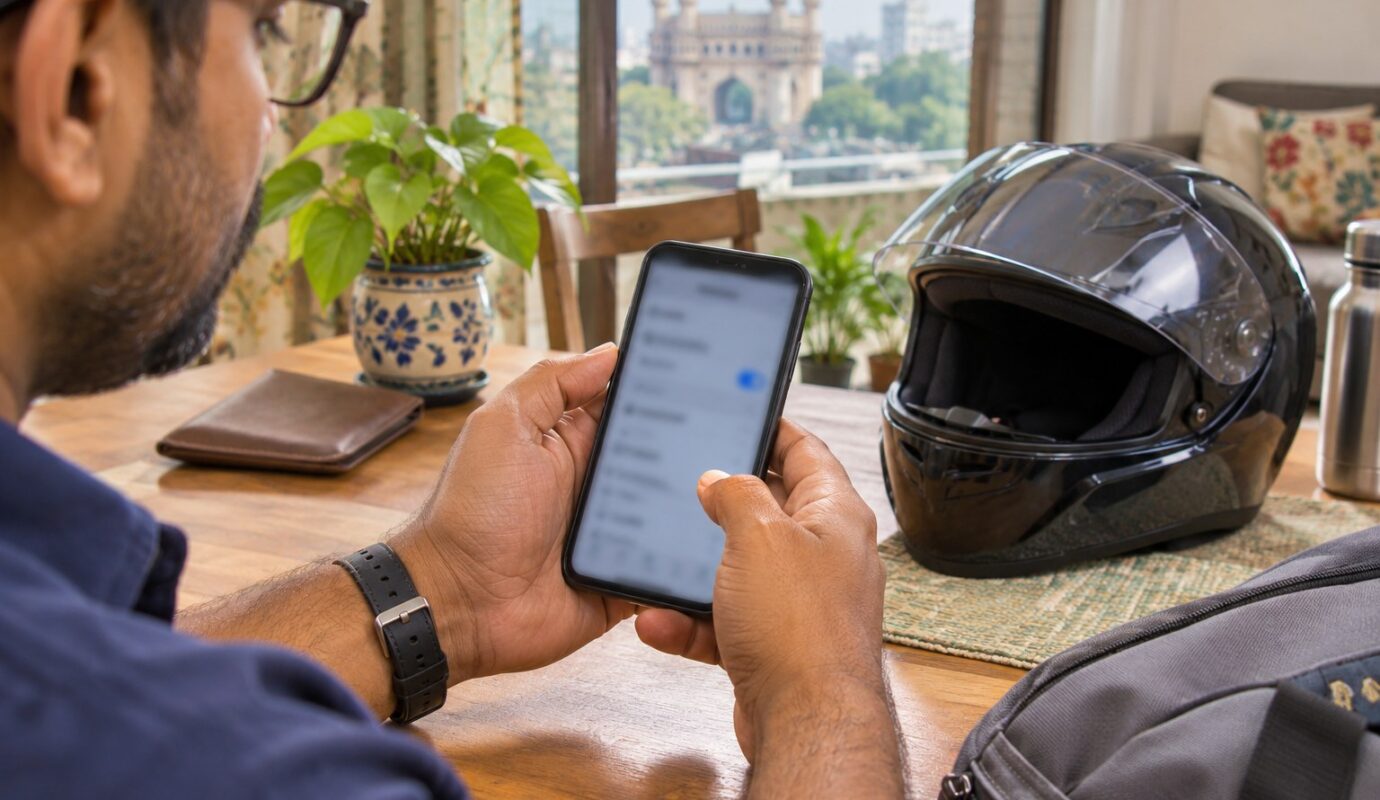
Set Up Medical ID on Your iPhone Before a Journey
Chapter 11 recommends preparing emergency contacts and medical information before a journey. On an iPhone, Medical ID can make selected details available from the lock screen. It is worth setting up while you can review the information calmly.
Find the feature and review each field
Open the Health app, select your profile picture and choose Medical ID. Add or edit relevant information and emergency contacts, then save. Apple’s current support page explains the controls; wording may differ with software version. Ask a chosen contact before listing them and check that their number is current.
Choose visibility deliberately
The Show When Locked setting lets another person access the Medical ID without your passcode. That can assist a helper, but it also means the chosen information is visible to someone holding the phone. Include what is useful for an emergency rather than a long private history. Automatic sharing features vary by country and should not be assumed to work everywhere.
Check access without making a call
Use Apple’s instructions to find Medical ID from the lock screen, without triggering an emergency call. Review the record after a medication, allergy or contact changes. Treat it as information for responders, not a substitute for their assessment. A small setup task becomes more valuable when it remains accurate months after the day you created it.
Reference: Apple Support: set up Medical ID.
About the book
This original article is inspired by Chapter 11, “The Knowledge That Saves Lives,” in HarGhar Se EkSainik by Syed Abdul Hakeem, Chairman of Hetch Foundation. The chapter brings the movement’s concern for every waiting family into emergency preparedness, responsible first response and practical learning. Explore the Chapter 10 appeal and learn more through Hetch Foundation.